
Getting started
Mergify combines several orders from the same customer into one new order, so you ship one parcel instead of several. This page takes you from the first time you open the app to your first merge.
What Mergify does
Section titled “What Mergify does”When a customer places more than one order, you can pay for more than one shipping label. Mergify creates one new order from those orders (the originals), so you pack and ship once. The merged order is a new order, not one of the originals turned into the only one left.
What happens to the originals comes from your Merge settings. By default, Mergify archives them, keeps the most expensive shipping line the customer paid for, and creates the merged order as a Shopify test order. A test order is a real order that stays out of your sales reports, so sales aren’t counted twice. The customer’s payments stay on the originals.
Mergify can also refund the shipping a customer paid more than once. It’s off until you turn on Refund duplicate shipping in Merge settings, and a refund can’t be undone. Cancelling the originals is also a choice you make there, and a cancelled order can’t be reopened.
You merge in three ways:
- Manual: you pick the orders yourself, in the app or from Shopify’s order list.
- Smart Suggest: Mergify finds the orders that belong together and lists them as groups. You review a group and merge it. Nothing merges until you confirm.
- Automerge: Mergify merges eligible groups on its own, as orders arrive or on a schedule. It’s part of the Advanced and Professional plans. See Automation.
Every merge is recorded in History, where you can follow its steps and, within limits, undo it. You need a plan to merge. Plan & usage shows the plans and what they cost.
When you first open Mergify
Section titled “When you first open Mergify”The first time you open the app, Mergify imports your recent orders. You see Setting up Mergify… with a progress line such as “Importing your recent orders · 1,240 of 3,100”. You can leave the page. The import keeps going.
If the import stops, a banner says “Mergify couldn’t import all your recent orders” and Try again starts it again. What the page shows meanwhile covers the orders imported so far.
When the import ends and you have no plan yet, Mergify shows What Mergify found in your orders: how many of your customers placed orders that could have shipped together in the last 60 days, how many extra shipments that is, and an estimate of what they cost. The scan covers your last 60 days of orders. The cost per shipment in that line is an estimate you can replace with your real label cost.
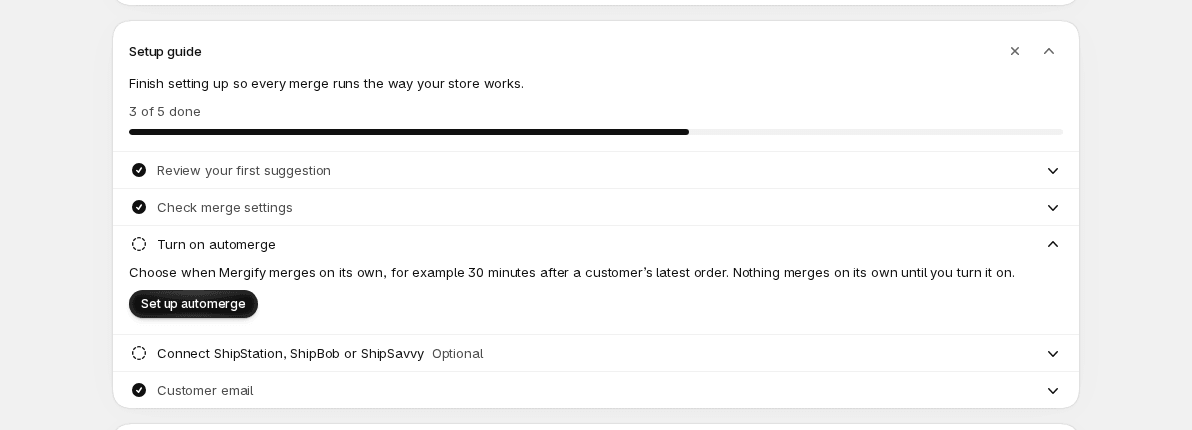
Below it, Choose a plan to start merging has a See plans button. It opens Plan & usage. When you choose a plan there, Shopify asks you to approve it, and you come back to the Overview, where the Setup guide waits for you.
Your first merge
Section titled “Your first merge”Do your first merge on orders you can check, and keep Automerge off until you’ve seen one result.
- Check your merge settings. Open Settings, then Merge settings. Read how the merged order is built and what happens to the originals, change what you need, and save.
- Open Orders. In the menu, choose Orders. It opens on Smart Suggest, which lists groups of orders Mergify thinks belong together. To pick the orders yourself, choose All orders and search by order number or customer name.
- Select the orders. In Smart Suggest, select a group. In All orders, select at least 2 orders, and at most 50. Then choose Review merge.
- Read the review. The Review merge page shows the merged order and what happens to each original. It says “Nothing will change until you confirm”.
- Create the merge. Choose Create merged order. The arrow beside it opens Create merged draft, which makes a draft order instead.
- Check the result. Open History and open the merge. Then look at the merged order and each original in Shopify. If you use ShipStation, ShipBob or ShipSavvy, connect it in Integrations first, so the originals are cancelled there after a merge and don’t ship twice.
You can also merge from Shopify. In your Shopify Orders list, select 2 or more orders, open More actions, and choose Merge selected orders. The window that opens has Preview, which shows the merged order, and Merge, which starts the merge right away, with no review step.
For the details of each step, see Orders and Review merge.
The menu
Section titled “The menu”The menu on the left of Mergify has six pages.
- Overview shows what needs your attention, what Mergify saved you, and your latest merges.
- Orders is where you find orders to merge: Smart Suggest and All orders.
- Automation turns on Automerge and sets when it runs.
- History lists every merge and what happened to it.
- Settings holds Merge settings, Filtering rules, Notifications, Integrations and Advanced.
- Plan & usage shows your plan, what you’ve used and what you can change.
You can also connect your own AI assistant to Mergify. See AI assistant. Answers to common questions are in Questions: merging, after a merge, shipping and fulfilment and payments and refunds.
Get help
Section titled “Get help”Choose Get help at the top of the Overview, or the chat button in the corner of Mergify, to open the chat with Mergify support. Mergify passes your store’s name, and its email when it has one, to the chat, so support can see which store you are. You can also email [email protected]. Feature requests are welcome in the chat or by email.
On a merge’s page in History, Get help with this… opens the chat with that merge’s number written in. It doesn’t send your customers’ names.
To get an answer quickly, tell us:
- the order numbers, and the merged order’s number if a merge was created;
- when it happened, and which way you merged: Manual, Smart Suggest or Automerge;
- the exact error, if one appeared, and what you expected instead;
- the shipping, warehouse or accounting apps connected to the store, and whether anything has already been packed, shipped or refunded.
If merges are going wrong, turn Automerge off on Automation while we look. That stops new automatic merges; manual and Smart Suggest merges still run. It doesn’t change merges already created, so check them in History before you retry anything: a merge that shows an error may have finished some of its steps.
Don’t send card numbers, passwords or API secrets in the chat.
If something looks wrong on a screen, the Send feedback button in the “Mergify has a new look” banner on the Overview opens the chat for it.