
Automation
Automerge merges orders for you, without a click. It merges only orders that pass your filtering rules, groups them with its own grouping settings (Smart Suggest has its own), and builds each merged order with your Merge settings.
Automerge is part of Advanced and Professional. On Starter and Basic the page shows its settings, nothing runs, and a banner offers Compare plans. Amounts and what each plan includes are on Plan & usage.
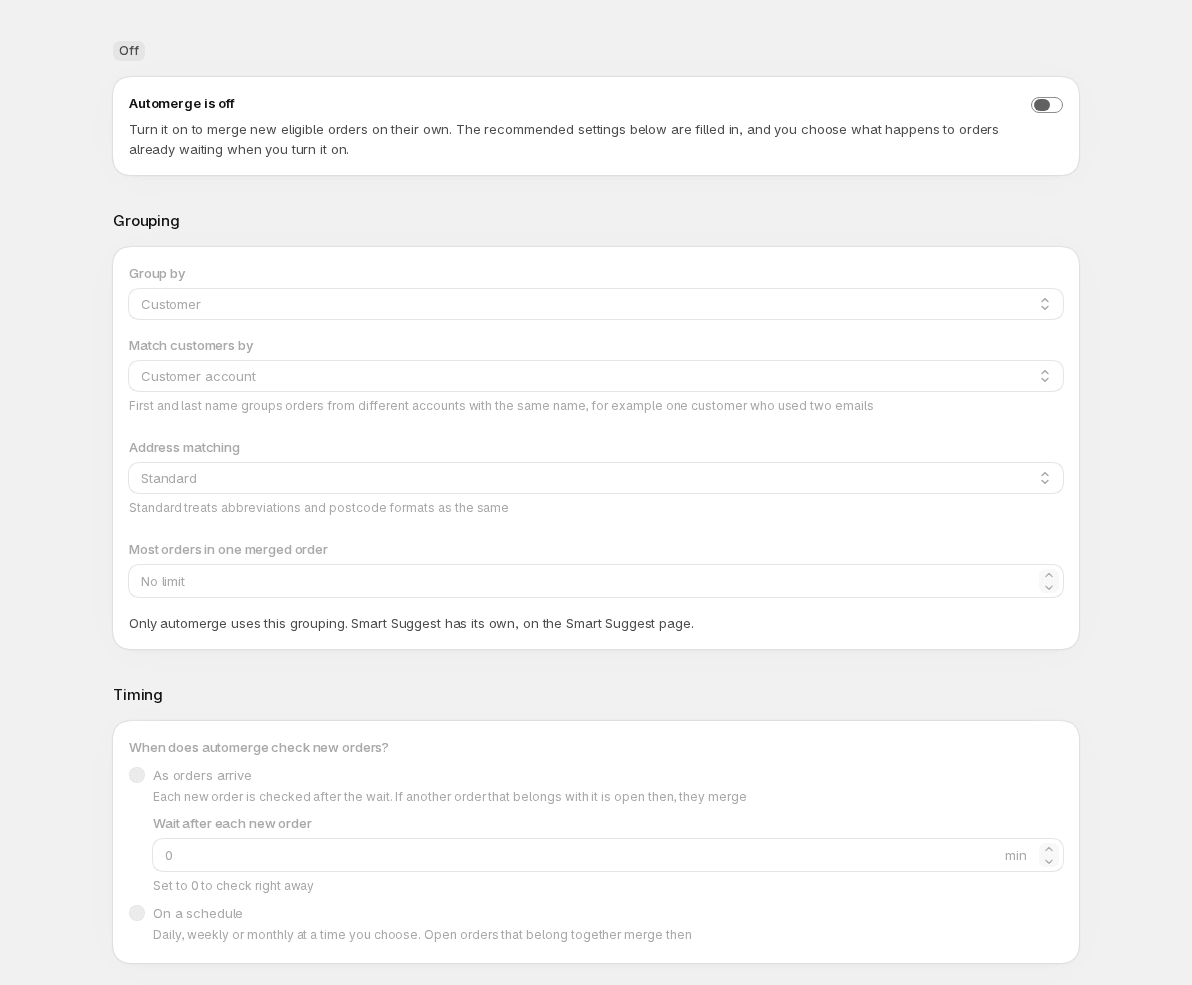
The page has a badge (On, Off or Not on your plan), a card with the Automerge switch, then Grouping, Timing and a Summary of what automerge will do. View in History at the top opens History filtered to automerge.
Turning on
Section titled “Turning on”Before you turn automerge on, look at what will run: your filtering rules, the grouping and timing on this page, and what your Merge settings do to the original orders. The settings you see are the ones that start running.
Then turn on the Automerge switch. The Turn on automerge window opens. Under Ready to turn on it shows how many filtering rules apply to automerge and what happens to the original orders after each merge (archived, cancelled or kept open), each with a link to where you change it.
The window also counts the groups of orders that are eligible right now and asks what automerge should do with them:
- Leave them (recommended) merges nothing at the moment you turn it on.
- Merge them now starts merging every eligible group right away, subject to your usage cap: a group that would be charged after the cap is reached is skipped and stays in Smart Suggest. The window shows how many of them use your included merges and how many are charged, and about how much. Each merge can be undone from History, but the whole batch can’t be undone in one step.
If there are no eligible groups, the window says so and there is nothing to choose. If Mergify can’t count within 20 seconds, which can happen on stores with many thousands of open orders, the window says so and still lets you choose. Choose Turn on automerge to confirm, or Cancel. If the change can’t be saved, the window shows Automerge didn’t turn on, keeps your choice and nothing is merged.
Changing the settings
Section titled “Changing the settings”Grouping and Timing can be edited only while automerge is on. When it is off, or not on your plan, you can read them but not change them. To change them while automerge is off, turn it on (choosing Leave them), then edit and save.
Change what you need, then press Save in the save bar. Discard drops your edits. Save stays off while a field shows an error. If saving fails, a banner says Mergify couldn’t save your changes; your edits are still there, and Try again sends them again.
Saving never merges anything and never turns automerge on or off. While you have unsaved changes the Automerge switch is disabled (“Save or discard your changes first”), so turning automerge on or off always uses saved settings.
Turning off
Section titled “Turning off”Turning off is immediate. Nothing new merges, orders waiting for their check end without merging, and your settings are kept. A merge that had already started finishes on its own, and the page says “1 merge is still finishing” until it does, with View the merge to open it. Turning automerge on again asks again what to do with the orders already waiting.
If your plan changes to another plan with automerge, your schedule stays as it is. If your new plan doesn’t include automerge, automerge turns off. Each time automerge runs it checks again that it is still on, that your plan includes it and that Mergify is still installed, and it stops quietly if not. Orders that are already in a running merge are skipped.
Grouping
Section titled “Grouping”Grouping decides which orders belong together. It applies to automerge only.
- Group by: Customer and address (the default), Customer, Address, or Tag prefix. With a tag prefix, orders whose tags share the prefix and the same value after it, for example
group-4471, form a group. Address needs a schedule (see Timing). - Match customers by (for Customer and address and Customer): Customer account (the default) or First and last name. First and last name groups orders from different accounts with the same name, for example a customer who ordered with two emails. Capital letters (A to Z) and spaces around a name are ignored; accents and nicknames are not, so “Élodie” and “Elodie” stay apart. With Customer alone, two different customers who share a name group together too. It needs a schedule (see Timing).
- Address matching:
- Exact treats addresses as the same when they differ only in capital letters or extra spaces.
- Standard also ignores punctuation, common abbreviations (
St.andStreet,AveandAvenue,AptandApartment) and spaces in the postcode. A store that set up Mergify before Standard existed keeps Exact until it chooses Standard.
- Most orders in one merged order: from 2 to 20. Leave it empty for no limit. If a group is larger, the orders beyond the limit are left out of that merge.
Smart Suggest marks a group Needs a look when its orders are not all paid (payment status Pending, Authorized or Partially paid), are partly fulfilled, belong to more than one customer account, or have addresses that aren’t written the same. That includes groups that Standard or First and last name matching put together. Automerge merges these groups too, unless a filtering rule excludes them, for example a rule that requires Payment status to be Paid.
Timing
Section titled “Timing”Choose When does automerge check new orders?
- As orders arrive: a new order is checked after the wait you choose in Wait after each new order, from 0 to 720 minutes. If another order that belongs with it is open at that moment, they merge. With a wait of 0 the order is checked within a minute. Other orders of the same group that arrive during the wait don’t start a new wait: the first order’s check covers them. Show example timeline draws two scenarios: two orders 20 minutes apart that merge at the first one’s check, and a first order with no other order open at its check, so nothing merges until the later order’s check. It appears on a wide screen, for waits of 21 to 119 minutes. It isn’t available with Address alone or when customers are matched by name: choose a schedule.
- On a schedule: under Repeats, choose Daily, Weekly (pick the day in On) or Monthly (pick the Day), on the hour you choose in At, in your store’s time zone. Every open group that belongs together merges then. More schedules adds Custom, a cron pattern in UTC, for example
0 14 * * 1-5for weekdays at 2:00 pm UTC.
Filtering rules are checked when the check runs, on the order as it is then. Under As orders arrive, an order’s group is taken from the order when it is placed, so a tag you group by that is added after checkout isn’t picked up in that mode; a schedule picks it up. If another app adds a tag after checkout, for example one that a filtering rule excludes, choose a wait long enough for the app to finish.
Daily, weekly and monthly times are turned into UTC when the schedule is set up, so across a daylight saving change a run can happen an hour early or late until the schedule is set up again. Saving a changed schedule, or turning automerge off and on, does that.
Which orders
Section titled “Which orders”Automerge merges only orders that pass the built-in rules and your filtering rules that apply to automerge. With no rule that applies to it, every open order can merge, within the built-in rules, so check Settings › Filtering rules before you turn automerge on. Orders older than your order history window are not merged; you set the window in Advanced.
The summary and today’s numbers
Section titled “The summary and today’s numbers”The card with the switch shows since when automerge has been on, how many merges it made today (Today: N merged) and how many need attention. N need attention opens History on Needs attention for today, and View in History opens History filtered to automerge. What each merge needs is on its page in History.
The Summary repeats your settings in a line each: Automerge, Which orders, Grouping, Timing, Merge settings and Integrations. Edit opens the filtering rules and the Merge settings, and Connect or Manage opens Integrations. While you have unsaved changes, Grouping and Timing carry an Unsaved badge.