
Orders
Orders is where you choose what to merge. It has two views, side by side at the top:
- Smart Suggest groups orders that belong together, for example two orders from the same customer to the same address. You review a group and merge it.
- All orders lists your open orders and draft orders. You pick any 2 or more and merge them, whatever your filtering rules say.
Both lead to Review merge, where you see what a merge will do before anything changes. Without a plan, Smart Suggest shows Choose a plan to see suggestions and All orders shows Choose a plan to merge orders, each with See plans. Plan amounts are on Plan & usage.
Smart Suggest
Section titled “Smart Suggest”Smart Suggest lists the groups of open orders that can ship together. Each group is one merge, and nothing merges until you review it and confirm.
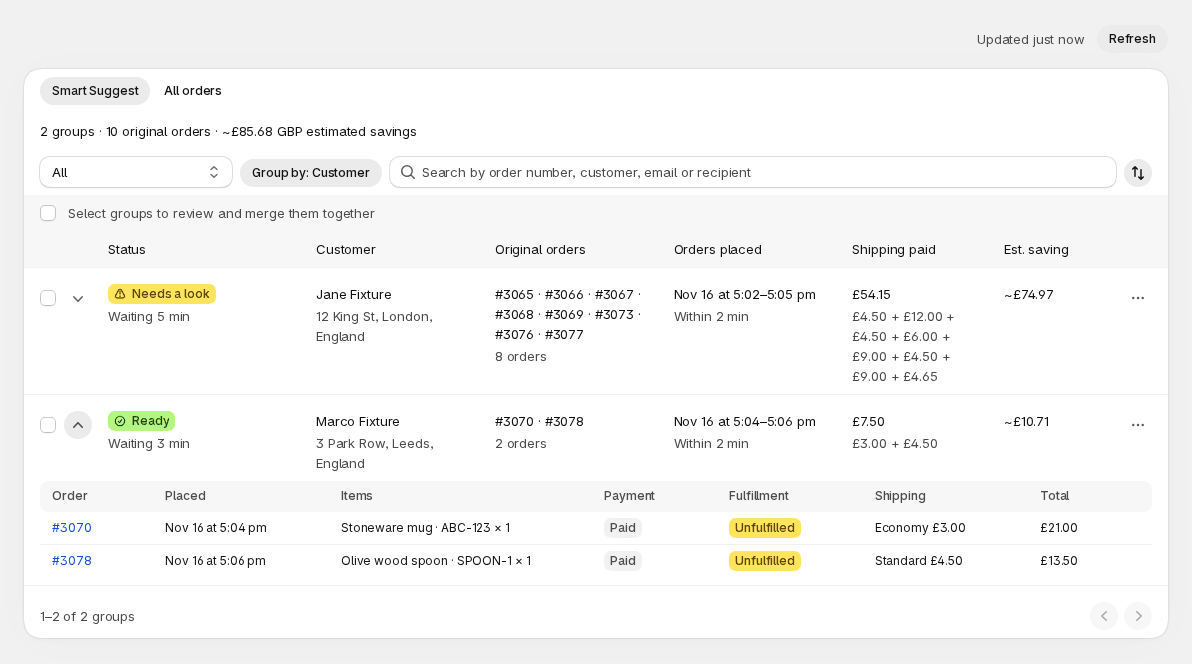
To merge a group:
- Open Orders. Smart Suggest is the first view.
- Check the Rules: chips above the list. They are your active Smart Suggest rules. Edit in Settings opens Filtering rules.
- Narrow the list if you need to: View, Group by, the search box and the sort button are in the toolbar.
- Click the arrow at the left of a group to see its orders. Each order links to Shopify.
- Tick the group’s checkbox, then click Review merge. Or open the group’s actions menu and choose Review.
- On Review merge, check the result and create the merged order.
The list shows when it was last loaded (“Updated 2 min ago”) with a Refresh button that reloads it.
What a row shows
Section titled “What a row shows”| Column | What it tells you |
|---|---|
| Status | Ready, Needs a look, Blocked, or the merge’s state while it runs. Under it, how long the group’s oldest order has been waiting. |
| Customer | The customer’s name and address. A 2 customers badge appears when the orders belong to more than one customer. |
| Original orders | The order numbers in the group. |
| Orders placed | When the orders were placed, and the span between the first and the last. |
| Shipping paid | The shipping customers paid on those orders, added up, with each order’s amount under it. |
| Est. saving | What you would save by shipping once: the group’s orders minus one, times the cost of one shipment. The summary line above the list adds it up for the groups you can merge. |
The cost of one shipment comes from Advanced: your own label cost if you entered one, otherwise an estimate from the shipping you charge.
The expanded group shows each order’s items, payment, fulfillment, shipping and total. Items are read from Shopify when you open the group, so they can take a moment.
Statuses
Section titled “Statuses”- Ready: no order is unpaid or partially fulfilled, and the orders share one customer and one address.
- Needs a look: at least one order is not paid in full (pending, authorized or partially paid), is partially fulfilled, or the orders have different customers or different addresses. You can still merge the group. Review merge says exactly what to check.
- Blocked: one of the orders is already in a merge that is queued or processing. The row says which order, with View merge. The group can’t be selected until that merge finishes.
- Queued or Processing: the whole group is in a merge that is running. The row reads “Merging · since” and the time. The group can’t be selected.
- Hidden: you hid the suggestion. It shows only in the Hidden view.
View filters the list by status: All, Ready, Needs a look, Blocked or Hidden. All leaves out the hidden groups.
Selecting and reviewing
Section titled “Selecting and reviewing”A group is merged as a whole. You can’t leave one order out of a group. To merge only some of its orders, hide the group, or pick the orders you want in All orders.
- Tick several groups to review them together, up to 50. Select all groups on this page ticks the page’s groups. The bar shows “3 selected”, how many orders become how many merged orders, and Clear.
- A group of more than 50 orders can’t be selected: the row says “Too many orders to merge at once”. Merge it from All orders, in parts.
- Your ticks stay while you search, change View or go to Review merge and come back. They clear when you change the grouping, because the groups are different then, and after you create a merge.
- Each group is its own merge. It is counted, and charged if it is past your included merges, on its own. Review merge shows this before you confirm.
Search, sort and pages
Section titled “Search, sort and pages”The search box finds groups by order number, customer, email or recipient, in the current view. A group with a matching order is shown whole, and, once you expand the group, the matching order carries a Matches search badge.
The sort button offers Oldest waiting first (the default), Highest saving, Most orders and Customer name. The Hidden view has no Highest saving.
The list shows 50 groups a page.
Hide and restore
Section titled “Hide and restore”Open a group’s actions menu and choose Hide this suggestion when you don’t want to see it, for example an order a customer asked you to keep apart. A toast says “Suggestion hidden”.
- Hidden suggestions show only in the Hidden view, with when each was hidden. Restore brings one back.
- Mergify remembers a hidden suggestion by its exact set of orders. If an order joins or leaves the group, it is a different group and shows again.
- A group hidden while one grouping was on shows in Hidden only while that grouping is on.
- Hiding affects Smart Suggest only. Automation doesn’t know about it: to keep an order out of automerge, use a filtering rule.
Grouping
Section titled “Grouping”Group by decides which orders belong together. It is a button that reads, for example, Group by: Customer and address. It opens a popover:
- Customer and address (the default until you save another): orders from the same customer to the same address.
- Customer: orders from the same customer, whatever the address.
- Address: orders to the same address, whatever the customer.
- Tag prefix: orders whose tags share the prefix you type and the same value after it, for example
group-4471. Type the prefix in the Tag prefix field; the list updates when you stop typing. With nothing typed, the field says “Enter a tag prefix” and nothing changes.
Under the choice, the popover shows only the settings that apply:
- Match customers by (for Customer and address and Customer): Customer account, or First and last name. Name matching groups orders from different accounts with the same name, for example one customer who ordered with two emails. Capital letters and spaces around a name don’t count; accents and nicknames do. With Customer alone, two different customers who share a name group together too. The options then read Customer name and address and Customer name.
- Address matching (for Customer and address and Address): Exact treats addresses as the same when they differ only in capital letters or extra spaces. Standard also ignores punctuation (
. , # ' ’ -and/), common abbreviations (StreetandSt,RoadandRd,ApartmentandApt) and spaces in the postcode. A store set up before Standard existed starts on Exact; newer stores start on Standard.
Neither ignores other differences: a postcode of 12345 and one of 12345-6789 are different addresses under both.
This view or your default
Section titled “This view or your default”A change regroups the list for this view only. A row under the toolbar says what you group by and what your default is: “Grouped by customer name and address for this view only. Your default is Customer and address.”
- Reset goes back to your default.
- Save as default keeps the grouping for your next visit. The default belongs to your store, not to you.
The Needs a look view has no Group by.
Automerge has its own grouping, set on Automation. Changing Smart Suggest’s grouping never changes what automerge merges, and the other way round.
Why an order isn’t listed
Section titled “Why an order isn’t listed”Smart Suggest lists an order only when it is open, inside your order history window, not already merged, passes your Smart Suggest rules, has what your grouping needs, and has at least one other order to group with.
To find out why one order is missing, type its number in the search box. If no group has it, the page says No group has an order matching and the number, and, when what you typed looks like an order number, adds a line with the reason:
| The line says | What it means and what to do |
|---|---|
| We can’t find the order in Mergify | Check the number. Draft orders are never in Smart Suggest: they are in All orders. |
| The order is more than a number of days old | It is older than your order history window. Extend the order history window in Advanced, or merge it from All orders. |
| The order is already shipped, closed or cancelled | Smart Suggest leaves out orders that are fulfilled, closed (archived), cancelled or fully refunded in Shopify. |
| The order has already been merged | It is in an earlier merge. Look for it in History. |
| The order has no customer, so it can’t be grouped by customer | Group by Address instead, or merge it from All orders. |
| The order’s customer has no first or last name, so it can’t be grouped by name | Match customers by Customer account instead. |
| The order has no shipping address, so it can’t be grouped by address | Group by Customer instead. |
| The order has no tag with your tag prefix | Check the order’s tags and the prefix. |
| The order doesn’t match your Smart Suggest rules | An order has to meet every condition of at least one active rule. Edit rules in Settings opens Filtering rules. |
| The order is in a hidden group | Open the Hidden view and use Restore. |
| The order is in a group in another view | It is listed. Change View to All. |
| No other open order goes with the order yet | Compare the full addresses and the customers of the orders you expected to group. |
If the orders still don’t group, compare the complete shipping addresses: street number, unit, city, region, country and postcode. A match on customer alone isn’t enough when you group by Customer and address. Switching Address matching to Standard helps with abbreviations and punctuation, not with different postcodes.
If you expected a new order to be there, wait a few minutes and use Refresh. If the list is out of date, the Order sync is incomplete banner appears.
All orders
Section titled “All orders”All orders is for merges you choose yourself. It reads your orders from Shopify each time you open it, so it shows orders Smart Suggest may not group. “Updated just now” and Refresh tell you how fresh the list is.
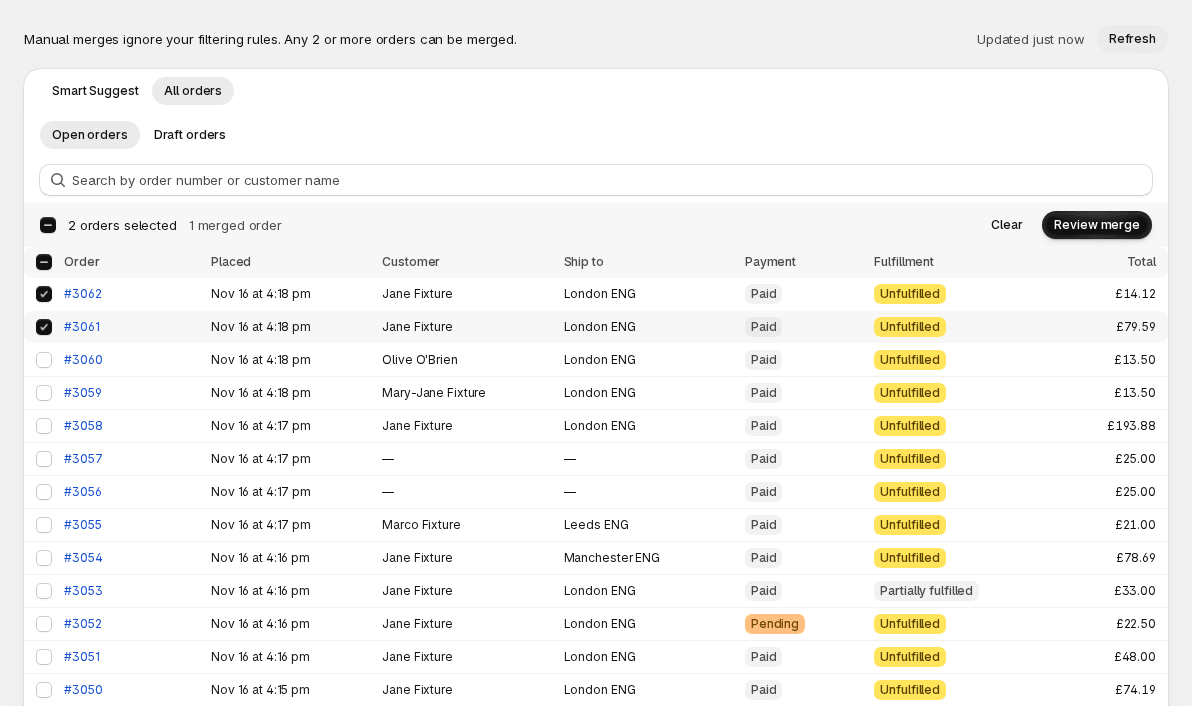
To merge orders by hand:
- Open Orders, then All orders.
- Choose Open orders or Draft orders.
- Search by order number or customer name if you need to. The list updates when you stop typing.
- Tick the orders. A bar shows “2 orders selected”, Clear and Review merge.
- Check the warnings, then click Review merge.
You can also start from Shopify’s own order list: select orders there and use Merge selected orders. It opens a window inside Shopify instead of these pages.
Open orders shows the orders Shopify lists as open: not archived and not cancelled. It doesn’t filter by fulfilment, so a fulfilled order stays in the list until Shopify archives it (a store that turned off automatic archiving keeps seeing them). They come newest first: Order, Placed, Customer, Ship to, Payment, Fulfillment and Total. Draft orders shows draft orders that are open or have had their invoice sent: Draft order, Created, Customer, Ship to, Status (Open or Invoice sent) and Total. Drafts carry a Draft badge, and an order number links to Shopify.
With draft orders ticked, Create merged order on Review merge creates a new order from them, and the arrow’s Create merged draft makes a draft. You can merge any 2 to 50 orders. Review merge stays disabled until you have picked 2 (“Select at least 2 orders”) and refuses more than 50 (“Select at most 50 orders”). Orders stay ticked while you change pages or search. An order that is already in a queued or processing merge shows that state and can’t be ticked.
The two warnings
Section titled “The two warnings”If the orders you ticked have different customers or different addresses, a warning says which one the merged order uses:
- “Different customers: the merged order goes to the newest order’s customer, Jane Smith”
- “Different addresses: the merged order ships to the newest order’s address (#1002, Halifax NS)”
“Newest” is your Merge settings choice for manual merges: the newest, oldest, cheapest or most expensive order. When it is cheapest or most expensive, the warning says the customer or address your Merge settings pick, and Review merge names the order. The customers warning has a Merge settings link that opens Merge settings.
Orders without a customer or without an address don’t trigger a warning.
The order window
Section titled “The order window”The footer says “Showing orders from the last 60 days”, with Extend in Advanced when the window can be longer. The window is a setting of your store; see Advanced. Older orders don’t appear here or in Smart Suggest.