
Merge settings
Merge settings decide what a merge does: how the merged order is built, what happens to the original orders afterwards, and whether customers get duplicate shipping back. Open Settings, then Merge settings.
The page has two groups, The merged order and The original orders, then a Refunds card. Nothing changes until you save: when you edit a setting, a bar shows Unsaved changes with Discard and Save.
The three merge types
Section titled “The three merge types”Mergify keeps one set of settings for each merge type: Manual, Smart Suggest and Automerge. A merge uses the settings of its own type, so a change made for Smart Suggest doesn’t change Automerge.
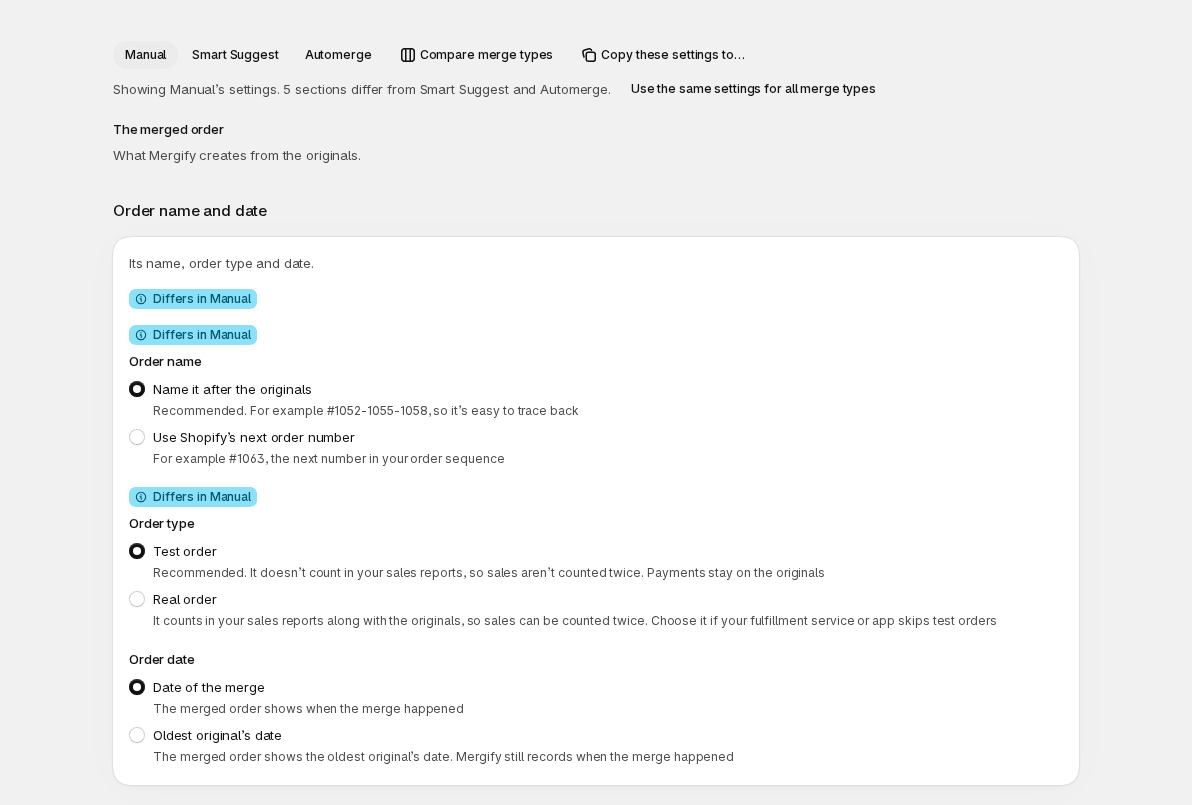
When all three types have the same settings, the page says These settings apply to all merges: Manual, Smart Suggest and Automerge, and every change applies to all three. To give one type its own settings, select Use different settings for a merge type.
When the types differ, the page opens on Automerge and shows a switch with the three types. You edit only the type you are viewing. The page helps you see the differences:
- A line says how many sections of the type you are viewing differ from the others.
- A badge Differs in Automerge (or the type you are viewing) marks each section or setting that differs. A section that matches the others says Shared with them.
- Compare merge types opens a table of only the settings that differ, one column per type.
- Copy these settings to… copies the type you are viewing to the types you tick under Copy to, then Copy. It replaces their current settings.
- Use the same settings for all merge types asks which type’s settings to keep, then makes all three the same.
Copying and sharing change nothing until you select Save. Saving one type shows Saved for Automerge (or its name); saving several shows Saved.
Merge settings are one of three decisions. They say what a merge does. Which orders are grouped is set in Smart Suggest and Automation, and which orders are eligible is set in Filtering rules. Changing one doesn’t change the others. Which emails customers get is set in Notifications.
Every type shows the same controls. One of them depends on the type: Customer when the orders’ customers differ matters for manual merges, and when Smart Suggest or Automerge group by Address or Tag prefix, or match customers by First and last name.
Order details
Section titled “Order details”This is the first group, The merged order: what Mergify creates from the original orders.
Name, type and date
Section titled “Name, type and date”The card Order name and date has three choices:
- Order name: Name it after the originals (Recommended) builds the name from the originals’ names, so the merged order is easy to trace back. Use Shopify’s next order number gives it the next number in your sequence.
- Order type: Test order (Recommended) keeps the merged order out of your sales reports, so sales aren’t counted twice. Payments stay on the originals. Real order counts in your sales reports along with the originals, so sales can be counted twice. Choose it if your fulfillment service or app skips test orders.
- Order date: Date of the merge shows when the merge happened. Oldest original’s date shows the oldest original’s date; Mergify still records when the merge happened.
The card Items decides which items move to the merged order and how they are listed.
- Combine identical items onto one line puts the same item from different orders on one line. Items combine only when they are the same product variant from the same vendor, at the same price, with the same discounts, item properties, tax and shipping settings. If products carry personalization, such as engraving text or a gift message, their properties differ, so those items stay on separate lines. If you turn it off, each original’s lines stay separate.
- Leave already-fulfilled items on their original order (Recommended) keeps items that already shipped where they are. Only unfulfilled items move.
- Limit quantity of specific products caps how many of a product the merged order gets, whatever the originals had. It suits a free gift or a handling fee. Select Manage, then Add products to pick products and variants in Shopify’s picker. Set At most to a whole number from 1 to 99, then select Done. Units over the limit are left out of the merged order, taken off the oldest orders first. Other products aren’t limited.
Customer and details
Section titled “Customer and details”The card Customer and details decides who the merged order belongs to and what it carries over.
- Customer when the orders’ customers differ: From the newest order (Recommended), From the oldest order, From the cheapest order or From the most expensive order. Cheapest and most expensive compare the orders’ totals, and a tie goes to the newest. The merged order’s shipping address comes from the same order.
- Carry over from the originals has one choice each for Notes, Tags and Additional details: Keep all, From the newest order, From the oldest order or None. Additional details are the originals’ custom attributes; with Keep all, if two orders use the same name, the newest order’s value is kept.
- Don’t copy these tags lists tags that stay on the originals only. Capital letters don’t matter.
- Tags to add to the merged order and Note to add to the merged order add your own text. A tag becomes a chip when you press Enter or leave the field. Under Insert, select a placeholder to add it to what you typed:
{original-orders-names},{original-orders-ids}(names and ids are joined with dashes) and{merge-date}(month/day/year in your store’s time zone). For example, the noteMerged from {original-orders-names}lists the originals on the merged order.
Choose tags your team and connected apps can tell apart, such as merged-order on the merged order and merged on the originals, before you use them in warehouse or reporting filters.
The row Totals, discounts and duties is rarely needed. Select Manage for two options, and a badge shows All off or how many are on:
- Set the merged order’s total to $0 (in your currency) adds a 100% discount and no taxes, so the merged order carries no value of its own. Payments stay on the originals. While it is on, Shipping line on the merged order is fixed to No shipping.
- Add import duties as tax lines shows the duties charged on the originals as tax lines on the merged order.
To check the result, run one merge with representative orders and compare the name, tags, notes, quantities and item properties on the originals and the merged order.
Shipping
Section titled “Shipping”The card Shipping decides which shipping line the merged order gets.
Shipping line on the merged order compares what each customer paid for shipping, after discounts. A tie goes to the newest order.
- Most expensive (Recommended) keeps the most expensive service a customer paid for.
- Cheapest keeps the cheapest service. A customer who paid for faster shipping may get a slower one.
- From the oldest order and From the newest order keep the shipping of the first or the latest order placed.
- Add them all up makes one shipping line with the total of all the originals’ shipping.
- No shipping gives the merged order no shipping line. Under Refunds, you choose which original keeps its charge.
Shipping line name applies only to Add them all up; it is greyed out otherwise. Choose Combine the names, or Custom name and type a Name. The name can’t be empty. If your store still has an older choice such as Name from the cheapest order, it shows until you choose another name.
Recalculate shipping from your store’s rates gets live rates for the combined order, which helps when your rates depend on weight or order value. Mergify takes the rate with the same name as the shipping line chosen above, or your cheapest rate if none has that name. If it finds no rate, the merged order gets the shipping line of the original order chosen above.
Original orders
Section titled “Original orders”This is the second group, The original orders: what happens to the orders you merged. Mergify applies these steps to real orders. If a draft order is among the originals, its status isn’t changed, but it still gets your tags and note.
Archive, cancel or leave
Section titled “Archive, cancel or leave”Order status has three choices:
- Archive (Recommended) moves the originals to archived orders. It doesn’t change their fulfillment or inventory. Use Mark originals fulfilled or Put originals’ fulfillment on hold after merging if they must not ship.
- Leave as is keeps the originals open and unchanged.
- Cancel cancels each original without restocking, refunding or notifying the customer. You can change the setting later, but orders already cancelled stay cancelled.
Archive originals only after the merged order is fulfilled keeps the originals open until the merged order ships, then archives them. It works only with Archive. For a merged draft, the originals are archived once you complete the draft order and it is fulfilled.
Fulfil the originals
Section titled “Fulfil the originals”Mark originals fulfilled has three choices:
- Never (Recommended): the originals keep their fulfillment status.
- When the merged order is created marks them fulfilled as soon as the merge is done, without tracking.
- When the merged order is fulfilled marks them fulfilled with the merged order’s tracking when it ships.
The merged order is the shipment to process. For a merged draft, the last choice works once you complete the draft order.
Originals at a fulfillment app’s location
Section titled “Originals at a fulfillment app’s location”Shopify lets only a fulfillment app fulfill an order assigned to that app’s location, so Mergify can’t fulfill such an original. When you pick When the merged order is created or When the merged order is fulfilled, Originals at a fulfillment app’s location appears with two choices:
- Leave them unfulfilled (default): the merge doesn’t fulfill those originals, and the fulfill step names them.
- Move them to a location and fulfill them: choose the location from the list. Mergify moves those originals there, then fulfills them.
The first time you choose a location, Mergify asks for permission to read your store’s locations. Select Allow access to locations and approve Shopify’s window. Only stores that choose a location see it. If you decline, nothing is saved. The choice applies to the merges that come after you save it.
Copy tracking to the originals
Section titled “Copy tracking to the originals”To copy tracking to the originals:
- Under Mark originals fulfilled, choose When the merged order is fulfilled.
- Select Save.
- Fulfill the merged order in Shopify with its tracking saved on the fulfillment.
- Open an original order and check its fulfillment and tracking.
If you chose When the merged order is created, turn on Copy tracking to originals that are already fulfilled. Originals fulfilled before the merge then get the merged order’s tracking too.
Notify the customer when tracking is copied to originals tells the customer when tracking is copied. It works with Copy tracking to originals that are already fulfilled or with When the merged order is fulfilled.
Hold, tag and note
Section titled “Hold, tag and note”- Put originals’ fulfillment on hold after merging stops staff or apps from fulfilling the originals. The hold is placed after the merge.
- Tags to add to originals and Note to add to originals mark the originals. The note is added after any note they already have. Placeholders under Insert:
{merge-date},{new-order-name},{new-order-id},{new-draft-order-name}and{new-draft-order-id}. For example,Merged into {new-order-name}. A tag over 40 characters goes to the note.
Special cases
Section titled “Special cases”Special cases is rarely needed. Select Manage for these options; a badge shows All off or how many are on:
- Void pending payments on originals voids the payment on originals that are still Pending, such as unpaid cash-on-delivery or manual-payment orders. Authorized card payments aren’t affected. This can’t be undone.
- Set the originals’ shipping to zero sets the shipping line to $0 on the originals whose shipping the merged order didn’t use. The original whose shipping line the merged order kept is left alone, and with Add them all up no original changes. It doesn’t refund the customer. With live rates on, it instead lowers the originals’ shipping lines until together they cost no more than the merged order’s shipping. Editing an order reopens it, so Mergify archives again the originals it archived in this merge. With Cancel, this step is skipped because Shopify doesn’t edit a cancelled order.
- Mark the merged order paid when all originals are paid is for cash on delivery: once every original is paid, the merged order shows as Paid.
- Mark pending originals as paid is no longer offered. It shows only on stores that already have it on, so you can turn it off.
Refunds
Section titled “Refunds”The card Refunds decides whether customers get back shipping they paid for more than once. Because the merged order keeps one shipping line, the other originals’ shipping would otherwise be paid twice.
Turn on Refund duplicate shipping and Mergify refunds the shipping, with its tax, of each original whose shipping line the merged order doesn’t use. For example, three orders paid $8, $8 and $15 for shipping. With Most expensive, the merged order keeps the $15 line and the customer gets $16 back.
The other two choices need Refund duplicate shipping on:
- Only refund when the merged order is at least with Minimum merged order total: smaller merges keep all their shipping charges. The minimum isn’t checked for a merged draft.
- When the merged order has no shipping, refund every original except (The most expensive, The cheapest, The oldest or The newest): the original you pick keeps its shipping charge. It’s used only when Shipping line on the merged order is No shipping.
A merged draft is a real merge: Create merged draft can still archive or cancel the originals and refund shipping before you complete the draft.
Refunds are based on what customers paid for shipping, not on the price of the label you buy. To check a refund, open the merge in History. If a refund is missing or still pending, see Questions: payments and refunds.
Restore recommended settings
Section titled “Restore recommended settings”Restore recommended settings is at the top of the page. It opens Restore recommended settings?: every setting goes back to the option marked Recommended, and settings without a recommendation stay as they are. Select Restore, then Save.
The recommended options are:
- Order name: Name it after the originals
- Order type: Test order
- Leave already-fulfilled items on their original order: on
- Shipping line on the merged order: Most expensive
- Customer when the orders’ customers differ: From the newest order
- Order status: Archive
- Mark originals fulfilled: Never