
Filtering rules
Filtering rules decide which orders Smart Suggest suggests and automerge merges. You find them in Settings › Filtering rules. Manual merges aren’t filtered. They are on every plan; until you have chosen one, the page asks you to.
Built-in rules
Section titled “Built-in rules”Three rules always apply to Smart Suggest and automerge and can’t be turned off:
- Open orders only. Closed, cancelled, fully fulfilled and fully refunded orders never merge.
- Not already merged. An order in a merge, including one that’s processing, can’t join another.
- Placed in the last N days, your order history window. Extend in Advanced or Change in Advanced opens the setting in Advanced.
A manual merge is refused only for an order that is already in a running merge. See Merging.
Your rules
Section titled “Your rules”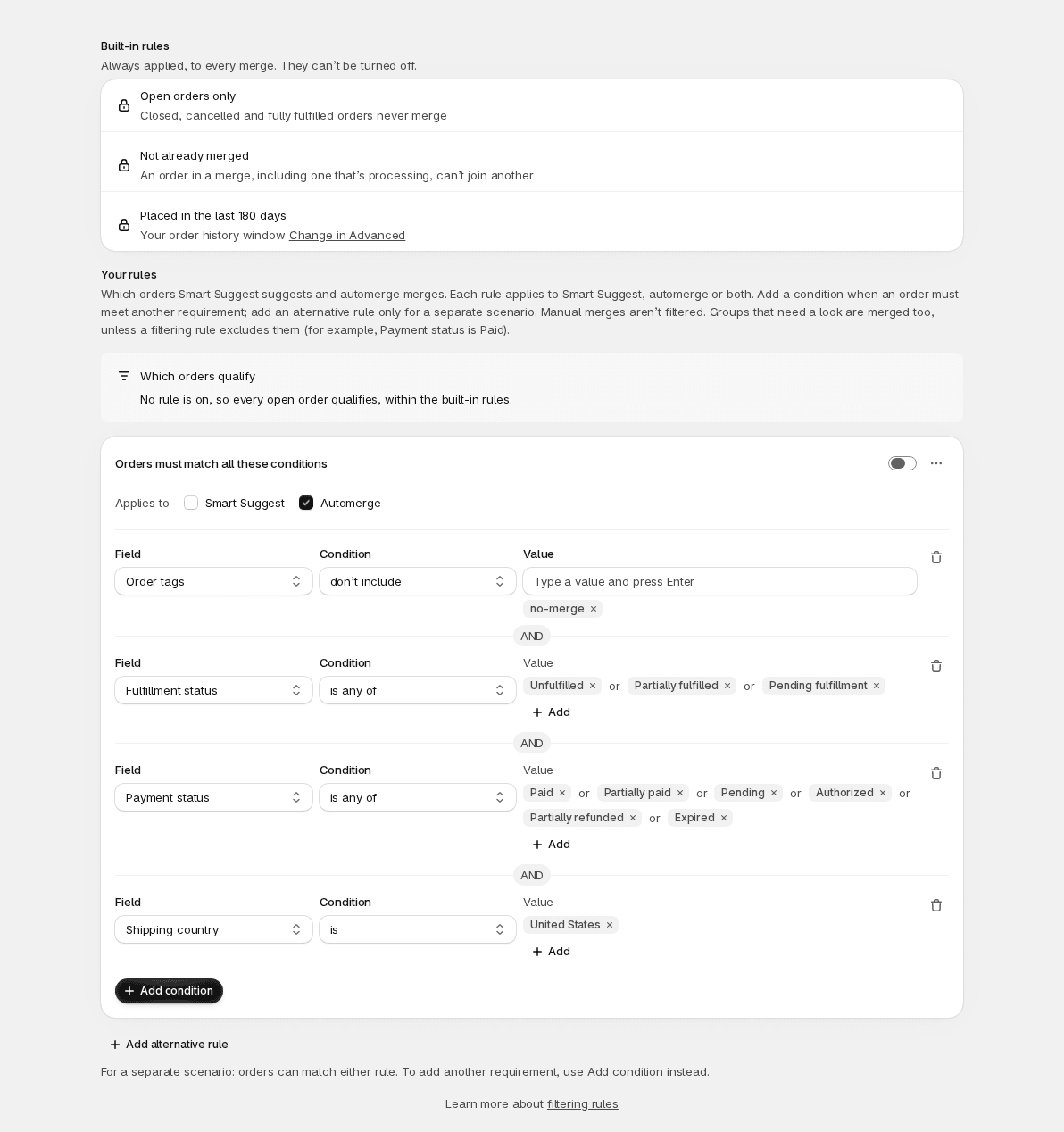
Your rules go on top of the built-in ones. Each rule is a card with:
- Applies to: Smart Suggest, Automerge or both. A rule that applies to both is one card, and a change to it changes both. A card needs at least one of the two checked.
- Conditions: an order must match all the conditions of a card to pass it (AND).
- A switch that turns the rule on or off. An off rule is kept for later and ignored.
With more than one rule that applies to a mode, an order qualifies when it matches any of them (OR). Add condition is for another requirement a rule’s orders must meet. Add alternative rule is for a separate scenario.
Duplicate copies a card, unsaved. Delete asks first (Delete this rule?) and shows what stops being used; so does removing a card’s only condition, since a rule needs at least one. Nothing changes until you press Save in the save bar; Discard drops your edits. Save stays off while a condition has an error.
Groups that Smart Suggest marks Needs a look (for example, orders that aren’t all paid) are merged by automerge too, unless a filtering rule excludes them, for example a rule that requires Payment status to be Paid.
Which orders qualify
Section titled “Which orders qualify”Above your cards, Which orders qualify spells out in a sentence what your active cards allow, so you can check a rule says what you mean. It reads what a save would send, and leaves out a card that is switched off.
- With no rule on, it says so: every open order qualifies, within the built-in rules. With no card at all, the page shows No rules yet instead.
- With one rule, it reads “An order qualifies when…”. With two or more, it lists the rules and says an order qualifies when it matches either, or any, of them.
- With exactly one rule on, and only one mode using it, it says which: Only Smart Suggest uses this rule. Automerge uses the built-in rules only. (or the other way round). With several rules on, each is tagged · Smart Suggest only, · automerge only or · Smart Suggest and automerge, and a line says which rules each mode uses, for example “Smart Suggest uses rule 1. Automerge uses either rule.”
For example, two rules: “Order tags include wholesale” and “Payment status is Paid and Order tags don’t include no-merge”. Orders that match either rule qualify.
Conditions
Section titled “Conditions”| Field | Conditions | Values |
|---|---|---|
| Creation date | is in the last | a number of days, hours or minutes |
| Payment status | is, isn’t | Pending, Authorized, Partially paid, Partially refunded, Paid, Refunded, Expired |
| Fulfillment status | is, isn’t | Unfulfilled, Partially fulfilled, Pending fulfillment, On hold |
| Shipping country | is, isn’t | countries, picked from a list |
| Shipping province | is, isn’t | names you type |
| Shipping city | is, isn’t | names you type |
| Shipping carrier | is, isn’t | names you type |
| Order tags | include, don’t include | tags you type |
| Customer tags | include, don’t include | tags you type |
A condition can hold several values. With “is” or “include”, one match is enough (an “is” condition with several values reads is any of). With “isn’t” or “don’t include”, none may match (an “isn’t” condition with several values reads is none of). To require two values, for example two tags on the same order, add the condition twice.
To exclude several tags, one Order tags condition with don’t include and all the tags excludes an order that carries any of them.
Fully refunded orders never merge, so a Payment status condition on Refunded never qualifies an order.
Type a value and press Enter to add it. Values are compared exactly as written, capital letters included, so type them the way Shopify writes them. A value can’t contain a comma followed by a space.
Creation date looks at how old the order is when Mergify checks it, counted back from that moment. A rule “is in the last 30 minutes” selects recent orders. It does not make automerge wait 30 minutes: for that, use the wait under Timing on Automation.
A tag condition selects which orders are eligible. It doesn’t create a separate group for each tag value. Grouping is set on Automation (Group by, Tag prefix) and for Smart Suggest on its own page.
If another app adds tags after checkout, for example the tag a rule excludes, the order may be checked before the tag exists. For automerge, choose a wait long enough for the app to finish.
If a case has no condition of its own, for example B2B or pickup orders, you can tag those orders in Shopify and use an Order tags condition on the tag.
Values that never match
Section titled “Values that never match”A country that Shopify doesn’t use never matches. The condition shows “Shopify doesn’t use “USA”, so this condition never matches”: Shopify writes “United States”. The value is kept as it is until you change it.
Rules you had before
Section titled “Rules you had before”Rules you created in the earlier app appear as cards. Rules that were identical for Smart Suggest and automerge appear as one card that applies to both. A rule with no conditions isn’t shown, and saving removes it. It was ignored next to other rules, and on its own it matched every order, which is what having no rule does.