
Overview
The Overview is the first page you see when you open Mergify. It tells you whether anything needs you, what merging has saved over the last 30 days, and what to do next.
At the top right, Review suggestions opens Smart Suggest, and Get help opens the chat with Mergify support. While a merge is running, a banner above everything says “1 merge in progress” with a View button. A store that is still being set up, or has never had a plan, sees a different Overview: see Getting started.
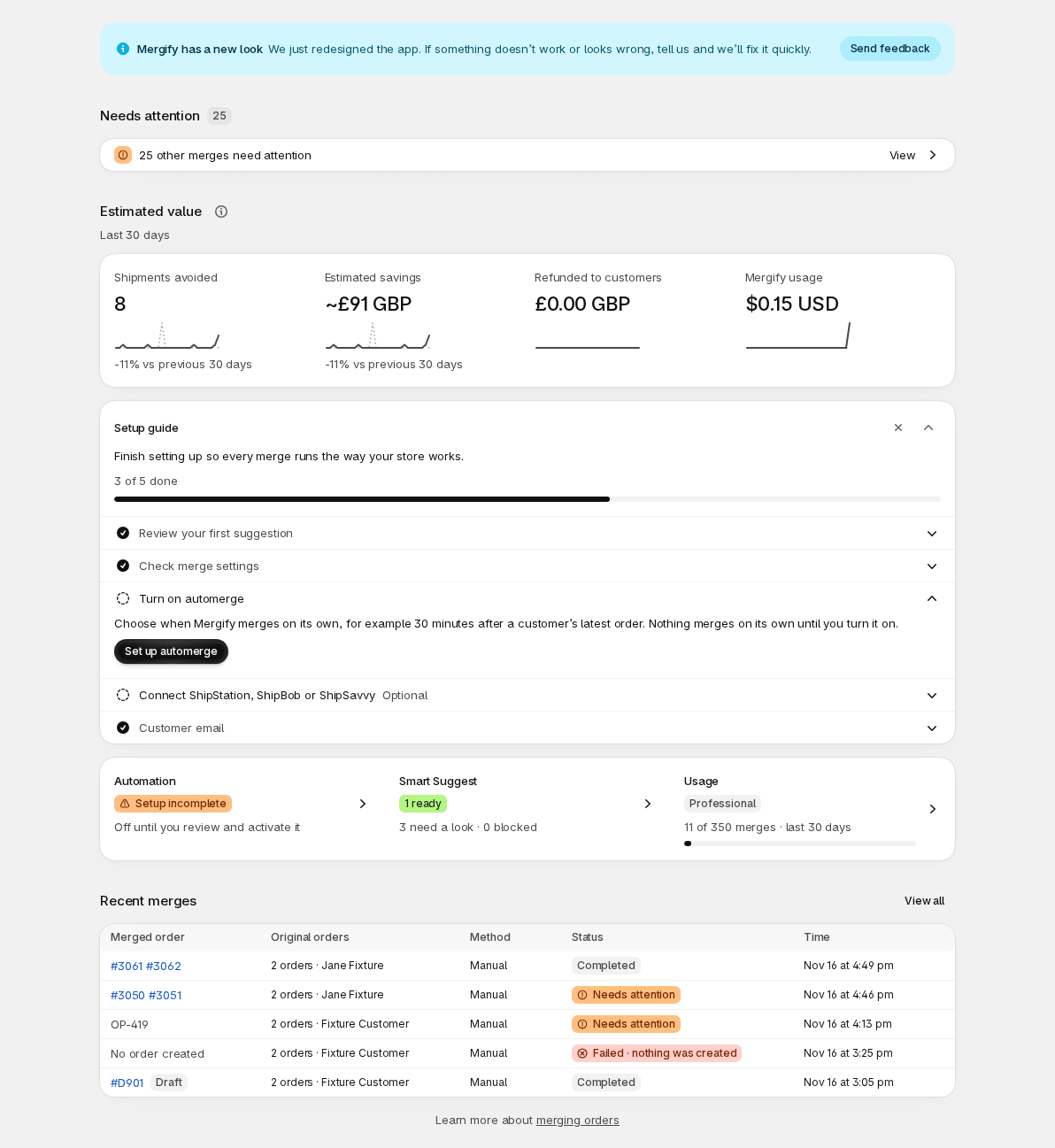
Needs attention
Section titled “Needs attention”This card appears only when something needs you. Its badge counts everything that needs you, so it can be higher than the rows shown. It can list:
- Usage cap reached: paid merges are paused. It’s the first row when your store has reached its usage cap. Merges your plan includes still work. Raise your cap opens a window to set a higher cap. Plan & usage explains the cap.
- Shipping refund failed on 1 merge. A shipping refund Mergify asked for didn’t go through. The row names the amount, the order, the merge number and the customer. Review repair opens the merge, where you can retry the refund after a confirmation, or choose Get help with this….
- Checking result: 1 shipping refund. Mergify asked for a refund and couldn’t confirm yet whether it went through. It says “No retry until confirmed”, so you can’t send the refund a second time by mistake. Open the row to see the merge.
- 1 other merge needs attention (or “2 other merges need attention”). Another step of a merge didn’t finish. View opens the Needs attention view in History.
Up to five refund rows are listed. They come from merges of the last 60 days that you haven’t undone.
When nothing needs you, the card is replaced by “Nothing needs your attention”. You see that line once you have a finished merge.
Estimated value
Section titled “Estimated value”Estimated value shows the last 30 days in four tiles. Each tile compares them with the 30 days before, as a percentage, and draws a small daily chart of both periods. The comparison isn’t shown when the previous 30 days were zero. On a narrow screen the charts are left out.
- Shipments avoided: how many shipments your merges saved. A merge of three orders avoids two shipments. Merges you’ve undone don’t count.
- Estimated savings: shipments avoided multiplied by your estimated cost per shipment. It’s shown with a
~because it’s an estimate. - Refunded to customers: the shipping refunds that went through, in your store’s currency. A merge you’ve undone still counts, because its refunds stand.
- Mergify usage: the usage charges Mergify made for these merges, in US dollars. It doesn’t include your plan’s monthly fee. When your usage cap is reached, this tile says “Usage cap reached” and when it renews.
The days are counted in your store’s time zone.
Your cost per shipment
Section titled “Your cost per shipment”Estimated savings are only as good as the cost per shipment behind them. Until you enter your own, Mergify uses the average shipping your customers were charged on your 200 newest orders that charged shipping and haven’t been merged. That is what customers paid, not what your carrier charged you.
To use your real cost, choose the info button beside Estimated value, or Edit in Settings on a narrow screen. It opens Advanced, where Your real label cost (optional) replaces the estimate and Use estimate goes back to it. If you have no orders that charged shipping and no label cost, Estimated savings shows a dash and asks you to enter your label cost in Settings.
Is Mergify paying for itself?
Section titled “Is Mergify paying for itself?”The tiles don’t add up a profit for you. To judge a period:
- Start from Estimated savings, using your real label cost, ideally for a few merges you’ve checked against what your carrier charged.
- Subtract Refunded to customers, which is the shipping you gave back.
- Subtract Mergify usage, and your plan’s monthly fee, which the tile leaves out. Plan & usage shows your plan and what you’ve used.
It stays an estimate: it doesn’t know about packing, handling or a heavier parcel. If you’re not sure, compare it with a few real merges before you rely on it.
Setup guide
Section titled “Setup guide”The Setup guide helps you finish setting up. On a new install it says “Nothing merges automatically until you review and turn it on”. A progress line shows how many of the five steps are done. Select a step to open it: it explains the step and has a button that goes to the page.
| Step | Done when |
|---|---|
| Review your first suggestion | Your store has a finished merge. |
| Check merge settings | You’ve saved your Merge settings, or they differ from the defaults. |
| Turn on automerge | Automerge is on. |
| Connect ShipStation, ShipBob or ShipSavvy (optional) | An integration is connected. |
| Customer email (optional) | Notifications has customer emails on. |
Turn on automerge shows Advanced and Professional with a lock on other plans. Its button is Compare plans, which opens Plan & usage.
The first step still to do opens by itself. Use the arrow to collapse the guide, or the close button (x) to hide it. Hiding it is remembered in this browser, for this store. The guide also goes away when all five steps are done. On a narrow screen it shows only the next step.
If your store had a plan before and has none now, you see this Overview with Choose a plan to start merging and See plans in place of the guide.
Automation, Smart Suggest and usage
Section titled “Automation, Smart Suggest and usage”Three cards sum up the state of the app. Select one to open its page.
- Automation shows a badge. Active says when merges happen: “Merges 30 min after the latest order” (the wait counts from the group’s first order, see Timing), “Checks each new order right away” or “Merges on a schedule”. Setup incomplete says automerge is off until you review and turn it on. Not on your plan says it’s available on Advanced and Professional. Skipping paid merges says the usage cap is reached, so only included merges run. It opens Automation.
- Smart Suggest shows how many groups are ready, and how many need a look and how many are blocked. It opens Smart Suggest. The counts can appear a moment after the rest of the page.
- Usage shows your plan’s name, how many of your included merges you’ve used in the last 30 days, and a bar. When the cap is reached it says “usage cap reached”. It’s there only when your store has a plan. It opens Plan & usage.
If your plan is the Starter that counts included merges over the last 30 days and you’ve used them all, a banner at the top of the page, above Needs attention, says so and tells you what each further merge costs. See plans opens Plan & usage.
Recent merges
Section titled “Recent merges”Recent merges lists your five latest merges, newest first, with the columns Merged order, Original orders, Method (Manual, Smart Suggest or Automerge), Status and Time. Select a row to open that merge in History. View all opens every merge. On a narrow screen the table becomes a list.
Before your first merge, the card says “Your merged orders will show up here”. It offers Review suggestions, and Learn how merging works, which opens Getting started. When Smart Suggest has already found groups, the card says how many.