
Notifications
Tell customers why their orders became one. Notifications is under Settings. It lists the emails customers can get around a merge and lets you turn on and edit the one Mergify sends.
Emails
Section titled “Emails”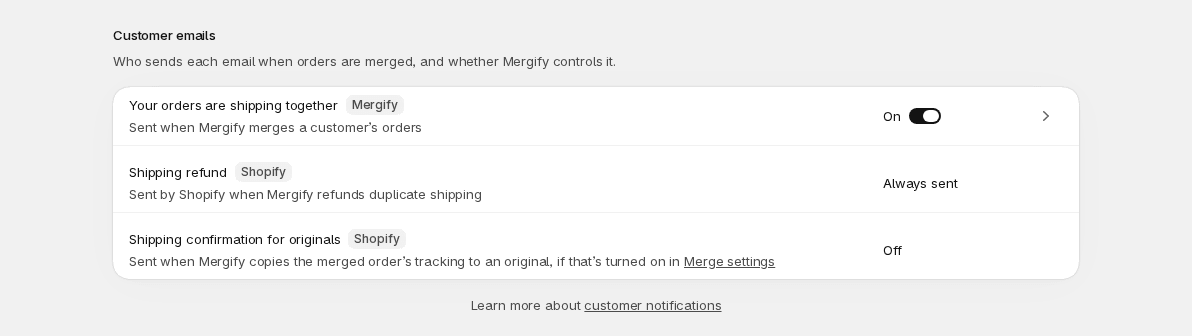
The page lists three emails, under Customer emails:
| Sent by | What it is | |
|---|---|---|
| Your orders are shipping together | Mergify | Sent when Mergify merges a customer’s orders. It has an On or Off switch and an arrow that opens the editor. |
| Shipping refund | Shopify | Sent by Shopify when Mergify refunds duplicate shipping. It is Always sent: Mergify can’t turn it off. |
| Shipping confirmation for originals | Shopify | Sent when Mergify copies the merged order’s tracking to an original, if that’s turned on in Merge settings (Notify the customer when tracking is copied to originals). The page shows On or Off; change it in Merge settings. |
For a new store the merge email is Off until you turn it on; a store that turned it on in the earlier version of Mergify may already show On. To turn it on:
- Open the email with the arrow beside the switch.
- Check the subject and design (see below), then select Save.
- Go back to Notifications and turn on the switch.
If you turn it on before saving an email, Mergify answers “Save the email first, then turn it on.” Saving never turns the email on or off by itself, and turning it off keeps your design.
Once it’s on, Mergify sends it after every merge, whether the merge was started by hand, from Smart Suggest or by automerge, to the email address on the merged order. The email shows your store’s name as the sender, and replies go to your store email. If the merged order has no email address, nothing is sent.
You can see what a merge will send before you create it: the When you confirm panel of Review merge says “Mergify emails” the customer, with the subject. After the merge, Notifications sent on the merge’s page in History shows Customer email as Sent, Not sent or Failed.
Mergify has no email for new Smart Suggest groups: look at Orders for them. To get a message when a merge completes, use Shopify Flow (see Integrations).
Editing an email
Section titled “Editing an email”Select the arrow beside Your orders are shipping together. The page has:
- Subject, up to 200 characters. It can’t be empty. Under it, the Insert chips add a placeholder to it.
- Email design, a list of blocks you arrange and edit. Next to its title are Available placeholders, Start from a template and Preview.
- Restore default email at the bottom.
A store that has never saved an email opens on Mergify’s default as an unsaved draft. Your changes only count after you select Save in the save bar. Discard drops them. If Mergify can’t save, a banner says so and Try again resends your edits.
Blocks
Section titled “Blocks”Add a block with Text, Image, Button or Divider under Blocks. Select a block to edit it:
| Block | What you set |
|---|---|
| Text | Style (Heading or Paragraph) and Text, up to 5,000 characters. |
| Image | Image URL, a web address that starts with http:// or https://, and Alt text. Mergify doesn’t upload images: host the image yourself and paste its address. |
| Button | Button label, up to 100 characters, not empty. The button always opens the customer’s order status page. |
| Divider | A line between blocks. Nothing to set. |
Drag a block by its handle to move it, or use its up and down arrows. The remove button deletes a block. An email keeps at least one block and can have up to 50.
Templates
Section titled “Templates”Start from a template offers three starting points:
- Shipping together: Mergify’s default, combined orders in one shipment.
- Short and simple: two lines and the order link.
- With refund details: adds the shipping refund and when it reaches the customer. Use it only if your merges refund shipping.
Choosing one asks “Replace your email with…?”. Replace swaps your subject and design for the template’s. Nothing is saved until you select Save.
Restore default email works the same way: it asks first, and Restore default puts Mergify’s default subject and design back, unsaved until you save. The email you had isn’t kept.
Preview
Section titled “Preview”Preview shows the email as the customer will see it, built by Mergify with sample data: customer Jane Smith, orders #1052, #1055 and #1058 merged as #1052-1055-1058, and a 16.00 shipping refund. Nothing is sent. It’s greyed out while the editor can’t open the email (see below).
An email the editor can’t open
Section titled “An email the editor can’t open”An email that was changed in the previous version of Mergify, or that uses parts the editor can’t show, appears read-only, with a banner. Customers keep getting it as it is until you replace it. Use Start from a template to begin a new design here.
Placeholders
Section titled “Placeholders”A placeholder is a word in braces, like {customer-first-name}. Mergify swaps it for the real value when it sends the email. Use them in the subject, in text, in a button label and in an image’s alt text and address. Available placeholders lists them in the editor.
| Placeholder | Replaced with |
|---|---|
{customer-first-name} |
The customer’s first name |
{customer-last-name} |
The customer’s last name |
{store-name} |
Your store’s name |
{refund-amount} |
The total shipping Mergify refunded in this merge, as a plain number with no currency symbol. It is 0 when nothing was refunded. |
{order-numbers} |
The original orders’ names, separated by commas, such as #1052, #1055, #1058 |
{new-order-name} |
The name of the merged order |
{new-order-link} |
The link to the merged order’s status page |
A placeholder with no value is left empty, for example {customer-first-name} for a customer with no first name.