
Review merge
Review merge is the last stop before anything changes. Mergify reads your orders again from Shopify and shows what the merge would create, what happens to each original order, what is refunded and what it costs. Nothing changes until you confirm.
You reach it from Orders:
- In All orders, tick 2 to 50 orders and click Review merge. It uses your merge settings for Manual.
- In Smart Suggest, tick a group and click Review merge, or choose Review in the group’s actions menu. It uses your merge settings for Smart Suggest. Tick several groups to review them together (see Merging several groups).
A banner at the top reads “Nothing will change until you confirm” and says when the orders were checked. Refresh preview checks them again. Mergify also checks once more when you click Create merged order.
What the page shows
Section titled “What the page shows”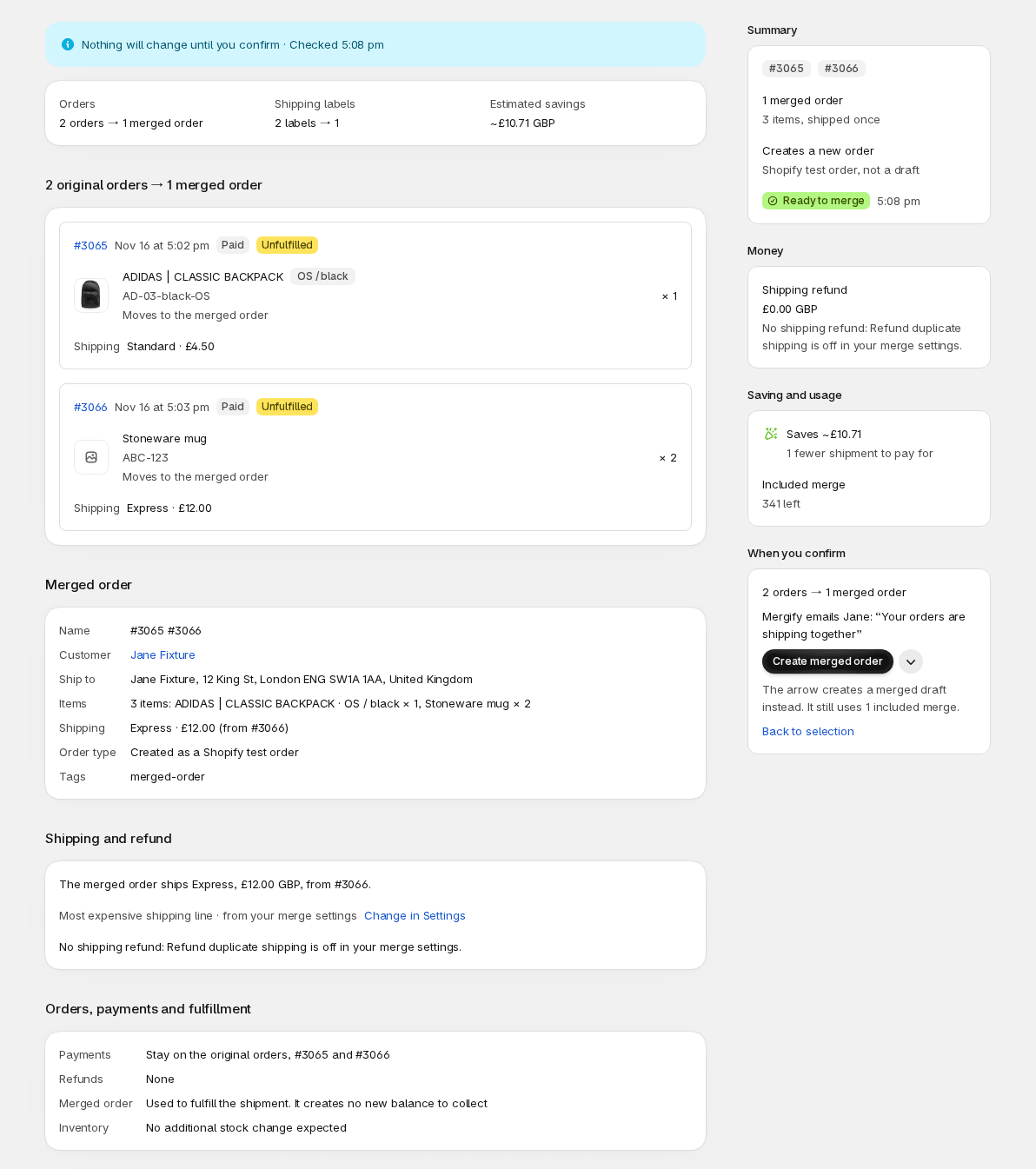
- Notices at the top, when something needs your attention. See below.
- Orders, and when they apply Shipping labels and Estimated savings: for example “3 orders → 1 merged order” and “3 labels → 1”.
- A card for each original order, with its payment and fulfillment status, its items and its shipping. Next to each item, Moves to the merged order or Stays on #1001.
- Merged order: the name, customer, address, items, shipping line, order type and tags of the order Mergify will create.
- What happens to the original orders: for each original, what your merge settings do to it, such as Archive, Cancel, Fulfill, Hold fulfillment, Replace shipping line, Mark as paid, Void payment, Add a note, a tag, or a shipping refund. If you use ShipStation, ShipBob or ShipSavvy, each also shows an entry such as ShipStation: cancel.
- Shipping and refund, Orders, payments and fulfillment and Notifications.
- A side column: Summary (Ready to merge or Needs a look), Money, Saving and usage and When you confirm, which lists every step in plain words.
Needs a look is not an error. It appears when a notice about partly fulfilled orders, unpaid orders, different customers, different addresses or an earlier merge asks you to read something, and the badge says Merge allowed. You decide. A notice about a cheaper shipping service is information only and leaves the status at Ready to merge.
Notices
Section titled “Notices”| Notice | What to do |
|---|---|
| An order is partially fulfilled: some items already shipped and stay on it, or also go on the merged order | Which one happens depends on Leave already-fulfilled items on their original order in Merge settings. |
| An order isn’t paid yet (pending, authorized or partially paid) | Its payment stays on that order, and the notice says how the merged order will show. |
| Different customers | The merged order goes to the customer your merge settings pick, named in the notice. |
| Different addresses | The merged order ships to the address your merge settings pick, named in the notice. |
| The merged order ships a cheaper service than another order paid for (information only, the status stays Ready to merge) | Your Shipping line on the merged order setting keeps one line. The notice says how much shipping is refunded on the other order. To keep the more expensive service, choose Most expensive in Merge settings. |
| An order was already merged | The notice names the earlier result. Merging again creates another order. |
Merged order or draft order
Section titled “Merged order or draft order”Two buttons create the merge. Create merged order is the main one. The arrow beside it, Other ways to merge, offers Create merged draft.
- Create merged order creates a real order in Shopify. The Order type row says which kind. “Created as a Shopify order” counts in your sales reports along with the originals. “Created as a Shopify test order” is a real order that stays out of sales reports, and the customer’s payments stay on the originals. You choose this in Merge settings, as Test order or Real order.
- Create merged draft creates a draft order in Shopify instead. A draft stays a draft in Shopify until you complete it there. Completing it turns it into an order, which affects inventory and sales like any order.
The two buttons work the same when you selected draft orders: Create merged order creates a new order from them, and Create merged draft makes a draft.
To try your setup, merge a first group of orders you don’t mind merging, with Automation off, and check the result in History and in Shopify before you rely on it.
Refunds
Section titled “Refunds”When the orders paid shipping more than once, Mergify can refund the duplicate shipping on the originals. It refunds only if Refund duplicate shipping is on in Merge settings, which is off by default.
Shipping and refund says which shipping line the merged order keeps and why, for example “Most expensive shipping line · from your merge settings” with Change in Settings. Under it, a table lists each original:
| Column | Meaning |
|---|---|
| Original | The order and its shipping line. |
| Collected | The shipping the customer paid on it. |
| Retained | The shipping the merged order keeps from it. |
| Refundable | Collected minus Retained. |
| Refund | Will be requested with the amount, or Nothing refundable. |
When nothing is refunded, one line says why:
- Refund duplicate shipping is off in your merge settings.
- The merged order is under your minimum order value for refunds.
- Your Shipping line on the merged order setting keeps every shipping line.
- The orders have no shipping line.
- Draft orders aren’t paid, so there is nothing to refund.
The Money card adds up the refunds, and Notifications says Shopify will email the customer about each refund: one email per refund, on the order where the shipping was paid. Shopify always sends it, and it isn’t a setting. If the originals belong to different customers, the page doesn’t name one.
Payments never move: Orders, payments and fulfillment says the payments stay on the original orders, where any refunds are recorded. When the merged order will show as paid, the page adds that it is used to fulfill the shipment and creates no new balance to collect. When the page reads Ready to merge, it adds that no additional stock change is expected.
Saving and usage
Section titled “Saving and usage”Saving and usage shows what the merge saves (Saves an amount, and “2 fewer shipments to pay for”) and what it counts as:
- Included merge, with how many you have left. The merge uses one.
- Extra merge, when you have used your included merges. The card shows the charge: the shipments saved times the price per shipment, added to your next Shopify invoice.
The estimated saving comes from the cost of one shipment on Advanced. Amounts, the usage cap and how to raise it are on Plan & usage.
If the group changed
Section titled “If the group changed”If an order changed between your review and your click, Mergify creates nothing. The page reads “This group changed since your review”, says “Nothing was created, refunded or archived”, and lists what is different, for example “#1001 quantity changed from 2 to 1” with the item’s name. A box titled “What the earlier review would have done” is shown for comparison only. Click Review again to read the updated merge, then confirm it.
If you click twice, the page reads “This merge was already submitted” and tells you nothing was created twice. View merge opens it.
Blocked
Section titled “Blocked”Blocked means Mergify can’t create this merge now. The page says why and that nothing was changed. Create merged order is disabled and the arrow is gone.
- An order is already in a merge that is queued or processing: “Can’t merge: #1001 is already in a merge that’s processing”. View merge opens that merge. Choose other orders, or try again when it finishes.
- You’ve used the merges your plan allows: if your plan stops after a set number of merges, See plans opens Plan & usage.
- Your usage cap is reached: “Can’t merge: this merge would cost … and your usage cap is reached”. Included merges still work, but this one would be charged. Paid merges resume when your billing cycle renews, or when you raise your cap with Raise your cap.
Can’t review
Section titled “Can’t review”Other times the page can’t build the merge at all, and again nothing is changed:
- “Can’t review: an order is no longer available”: Shopify can’t give one of the orders. Go back and choose again.
- “Can’t merge: these orders have no items left to merge”: every item has shipped or your merge settings leave it out.
- “Can’t merge: these orders use different currencies”: they were placed in different store currencies and paid in different currencies, and Mergify won’t guess an exchange rate between them.
- “Choose a plan to merge orders”: See plans opens Plan & usage.
Merging several groups
Section titled “Merging several groups”In Smart Suggest, tick up to 50 groups and click Review merge to review them in one go. The page lists one row per group with Customer, Shipping kept, Refund, Est. saving and Status.
- Groups that need a look are open, so you can read the notices. Ready groups stay closed. Show details opens one, and Open full review opens its own Review merge page.
- The side column adds up the merges, the refunds and your usage, and lists what happens when you confirm: a line that says it uses your last included merges and then costs money, when the batch crosses from your included merges into charged ones.
- The button reads Create 3 merged orders. A batch creates orders only: there is no draft option.
- A group that is blocked is left out, and the page says which and why (“Leaves out Jane’s group: …”). The rest still merge. Groups left out because your usage cap is reached say so.
- A group that couldn’t be checked shows Couldn’t check this group with Try again, and is left out until it can be.
Each group is its own merge: it is counted and charged on its own, and you can undo each from History.
After you click, Merging 3 groups opens and shows progress (“2 of 3 done”). Each line has its own status, Queued, Processing, Completed or Needs attention, its latest step and View merge. A line that reads “This group changed since your review. Nothing was created.” has Review again. You can leave the page: the merges keep running and each result is recorded in History.
After you create
Section titled “After you create”With one group, a toast reads “Merge queued for Jane Smith” with View, and you return to the list you came from, with your ticks cleared. The merge runs in the background. Follow it in History, where each step is listed, and open Undo a merge if you need to reverse it.