
Integrations
When Mergify merges orders, the originals can still be waiting in your fulfillment app and ship as well as the merged order. Integrations is under Settings. It connects Mergify to ShipStation, ShipBob and ShipSavvy so it cancels the originals there for you, and lists the two integrations built into Shopify, Flow and Sidekick.
The page has two lists:
- Fulfillment apps: ShipStation, ShipBob and ShipSavvy. Each row shows Connected, Not connected or Reconnect required. Select a row to open its page.
- Shopify: Shopify Flow and Sidekick. They are built into Shopify and there is nothing to connect.
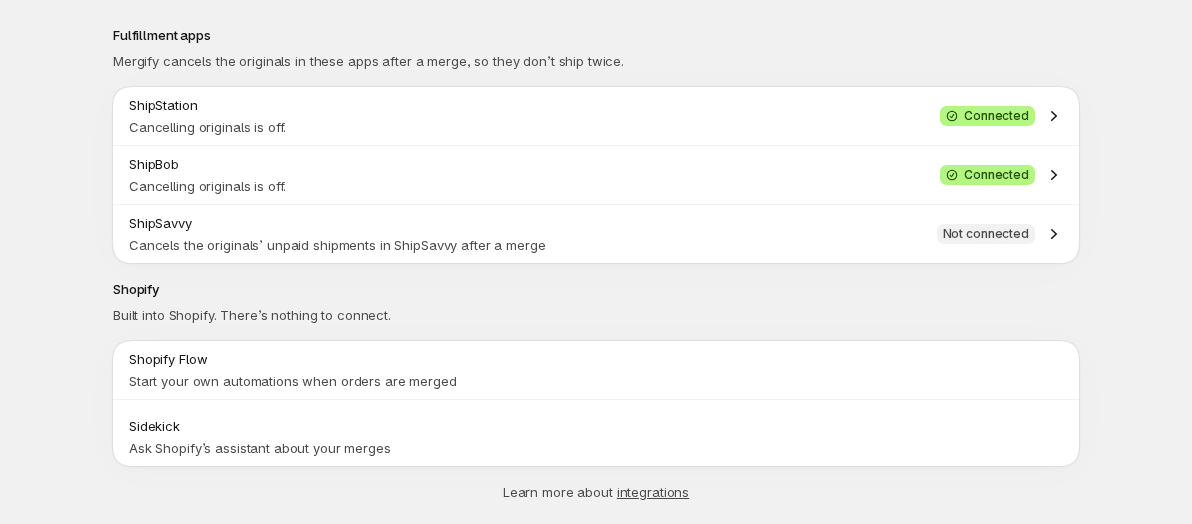
Fulfillment apps
Section titled “Fulfillment apps”After every merge, Mergify cancels the originals in each fulfillment app you have connected and left cancelling on for. You can connect more than one. If the cancelling doesn’t work for an original, the merge still completes, and it shows as Needs attention in History with the reason.
Every fulfillment app page works the same way:
- Connection. You paste your key, and Mergify saves it write-only: a saved key shows as Saved and is never shown again. Replace opens an empty field for a new one.
- A check before saving. Mergify makes one read call to the app to check the key. If the app refuses it, you’re told the app didn’t accept it and nothing is saved. If Mergify can’t reach the app, nothing is saved either: try again in a few minutes.
- After a merge. A switch (for example Cancel originals in ShipStation) turns the cancelling on or off. It starts on when you connect. With it off and the keys kept, the list says Cancelling originals is off.
- Disconnect. Disconnect asks you to confirm, deletes your saved keys and turns cancelling off. Merges already done aren’t changed.
Reconnect required
Section titled “Reconnect required”When an app refuses your saved key during a merge (or during ShipBob’s skip check or a ShipStation retry), Mergify marks the integration Reconnect required and shows a banner on its page. The merge itself isn’t stopped. Until you replace the key, Mergify can’t cancel originals in that app, so check there for the originals of new merges before they ship. Select Replace, enter the new key and save: a key the app accepts clears the mark.
ShipStation
Section titled “ShipStation”Mergify finds each original in ShipStation by its order number and cancels it.
To connect, copy your API key and secret from ShipStation under Settings → Account → API Settings, paste them into API key and API secret, and select Connect ShipStation. Replace opens both fields, because Mergify checks a new key against the secret: enter both again and select Save. The Cancel originals in ShipStation switch saves as soon as you change it.
If Mergify can’t find an original in ShipStation, or ShipStation won’t cancel it, the merge’s cancelling step is marked failed. Open the merge in History and select Retry this step: Mergify checks ShipStation first and cancels only what hasn’t shipped.
ShipBob
Section titled “ShipBob”Mergify cancels the originals’ shipments in ShipBob.
To connect, paste your ShipBob API key into API key. ShipBob uses the save bar: select Save to connect, and again when you change the Cancel originals’ shipments in ShipBob switch or the option below.
Under Automerge only there is one option, Skip orders ShipBob is already processing. When it’s on, automerge leaves out the orders ShipBob has already started on, and doesn’t merge a group that has fewer than two orders left.
ShipSavvy
Section titled “ShipSavvy”Mergify cancels the originals’ unpaid shipments in ShipSavvy.
To connect, copy the Live API Public Token from Account Settings in ShipSavvy, paste it into API token and select Connect ShipSavvy. Mergify finds each original in ShipSavvy by order number. ShipSavvy makes a separate shipment for every fulfillment order of an order, and Mergify cancels each one.
Shopify Flow
Section titled “Shopify Flow”Shopify Flow can start your own automations when Mergify merges orders. There is nothing to set up on this page: in Flow, choose the Orders merged trigger (“Triggers after orders were merged by Mergify”).
The trigger gives your workflow the new merged order and these details:
- the original orders
- how the merge started: manually, from Smart Suggest or by automerge
- the time of the merge
- the shipping the merge saved: the originals’ shipping costs minus the merged order’s
- whether Mergify refunded that difference to the customer
Mergify also offers two Flow templates you can start from:
- Fulfill original orders when merged order is fulfilled: when an order is fulfilled, checks whether it’s a merged order and, if so, fulfills the originals.
- Send invoice when Mergify merges an order: sends an invoice from the merged order. Edit the email content before you use it.
Sidekick
Section titled “Sidekick”Sidekick is Shopify’s assistant. Mergify adds three read-only tools to it (merge history, an order’s role in a merge, and your merge settings), so you can ask Sidekick about your merges without leaving Shopify. There is nothing to connect. For example:
- “What did Mergify merge this week?” Sidekick reads the completed merges over a date range, and covers the past week when you don’t give one.
- “Was order #1002 merged?” Sidekick says whether the order was merged into another or is the result of a merge, and what happened to it.
- “Are merged orders in test mode?” Sidekick reads your merge settings and explains what each one does.
Sidekick only reads. It never merges, undoes a merge or changes a setting: for those it tells you what would happen and sends you to Mergify. To let an AI assistant make changes for you, see AI assistant.